
Keeping up with social media design can be exhausting. Every platform wants a different size, every campaign needs a fresh look, and unless you have a designer on call, it’s easy to feel overwhelmed. I used to spend hours trying to make posts look good, only to end up frustrated and behind schedule.
Then I started leaning on free templates—and honestly, it’s been a game-changer. You don’t have to design everything from scratch. Swap in your text, drop in a photo, tweak a color or two, and suddenly your post looks polished.
Here are a few resources I actually use and recommend:
Canva
Canva is the obvious choice. Tons of ready-made templates for Instagram, Facebook, TikTok, LinkedIn… you name it. Even the free plan gives you plenty to work with. I like it for quick edits when I don’t have time to fuss over details.
Pikwizard
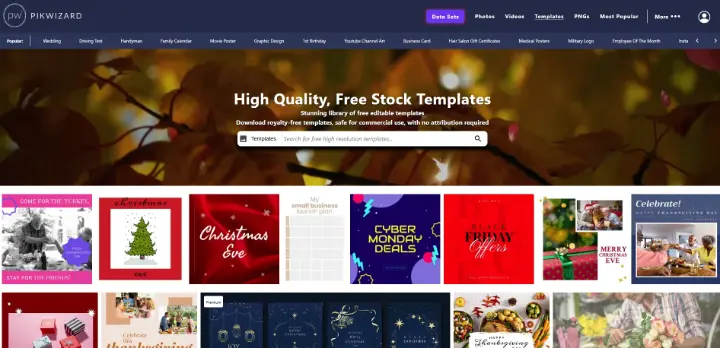
Most people think of Pikwizard for free stock photos and PNGs on transparent background, but it has also got a huge collection of free editable templates you can use right away. The beauty of Pikwizard is you can pick a great image and turn it into a finished social post in minutes. I use it when I’m in a rush but still want something that looks professional.
Adobe Express
Adobe Express (formerly Spark) has some surprisingly nice free templates. They feel a little more polished than Canva’s, which is nice if you want your posts to stand out a bit more.
VistaCreate (Crello)
VistaCreate has templates that look modern and trendy. It’s one I turn to when I need Instagram Stories or Pinterest posts that pop.
Quick Tips
- Use your brand colors – Don’t leave everything in the template’s default colors.
- Swap in your fonts – Small tweaks make templates feel unique.
- Use good photos – Free stock images from Pikwizard can take a template from “meh” to “wow.”
- Stick to a style – Changing templates every week makes your feed look messy.
Frequently Asked Questions About Free Templates For Social Media
1. What are free social media templates?
Free social media templates are ready-made designs sized for platforms like Instagram, Facebook, TikTok, and LinkedIn. You simply swap in your own text, images, and brand colors instead of designing every post from scratch. Tools like Canva, Pikwizard, Adobe Express, and VistaCreate all offer free social media templates you can start using right away.
2. Where can I download free social media post templates?
You can get free social media templates from:
- Canva – huge library of Instagram, Facebook, TikTok, and LinkedIn templates.
- Pikwizard – free stock photos, PNGs, and social media post designs you can edit quickly.
- Adobe Express – polished, designer-style templates for posts and stories.
- VistaCreate (Crello) – modern, trendy templates, especially for Instagram Stories and Pinterest.
All of these have free plans with enough templates for most small businesses and creators.
3. Are Canva, Pikwizard, Adobe Express, and VistaCreate templates really free to use?
Yes—each platform offers free social media templates and free design elements. However, they also have Pro / paid content (often marked with a crown or “Pro” label in Canva, for example), so always check whether a template or image is free or paid before downloading.
4. Can I use free social media templates for commercial use (for my business or clients)?
Often yes, but it depends on the license of each platform. For example, Canva allows commercial use of many templates and elements, but there are rules around how you use and resell designs. Always read the licensing page and terms of use for Canva, Pikwizard, Adobe Express, and VistaCreate before using templates in paid products or client work.
5. Which is the best free tool for beginners: Canva, Pikwizard, Adobe Express, or VistaCreate?
- Canva is usually the easiest for beginners and has the widest range of social media post templates.
- Pikwizard is perfect if you want great stock photos and PNGs turned into posts quickly.
- Adobe Express suits you if you like a more polished, “designer” look.
- VistaCreate is great when you want trendy, eye-catching templates, especially for Stories and Pinterest.
If you’re brand new to design, Canva plus Pikwizard photos is a very beginner-friendly combo.
6. What are the best sizes for social media posts (Instagram, Facebook, TikTok, LinkedIn)?
Most template tools automatically use the right dimensions for each platform, but as a quick guide:
- Instagram feed posts – typically 1080 × 1080 or 1080 × 1350
- Instagram Stories / Reels, TikTok videos – 1080 × 1920 (vertical)
- Facebook posts – often 1200 × 630 or square (1080 × 1080)
- LinkedIn posts – 1200 × 1200 or 1200 × 627
When you create a design in Canva, Adobe Express, or VistaCreate, simply choose the specific format (e.g., “Instagram Story”) and the correct size will be applied automatically.
7. How do I customize social media templates so they match my brand?
To make social media post templates feel on-brand instead of generic, always:
- Change to your brand colors
- Swap in your brand fonts (or close matches)
- Add your logo or handle
- Use consistent photo styles (e.g., bright, minimal, or bold)
These small tweaks help your Instagram templates, Facebook posts, and TikTok graphics look unique and recognizable compared to everyone else using the same free templates.
8. How can free social media templates help my social media marketing?
Using free social media templates speeds up content creation and makes your feed look more professional, which can lead to better engagement over time. Templates help you:
- Post more consistently
- Keep designs on-brand across multiple platforms
- Save time versus designing everything from scratch
This supports your overall social media marketing strategy by making it easier to stay active and visually consistent.
9. Can I use social media templates to plan a content calendar?
Yes. Many brands use templates for content calendars and post planning. You can:
- Use design tools (like Canva + a folder of templates) to batch-create posts.
- Combine them with a social media content calendar template or planner (e.g., from Hootsuite, Notion, or Sprout Social) to map your posts by day, platform, and topic.
This keeps your feed consistent and helps you avoid last-minute design panic.
10. How do I keep my Instagram feed and other social media profiles looking consistent if I’m using different templates?
The key is to stick to a style:
- Choose a small set of 3–5 templates per platform and reuse them
- Keep your colors, fonts, and photo style consistent
- Use recurring layouts for recurring content (e.g., tips, quotes, announcements)
Using a consistent template set makes your social media branding look cohesive, even if you’re switching between Canva, Pikwizard, Adobe Express, and VistaCreate designs.
Best Free Templates for Social Media Graphics